Using Voices and Languages
WithAudio does not switch “language” as a separate setting. Each voice is built for a specific language, so you get audio in a given language by choosing a voice that matches your document. A language may offer more than one voice (different styles or engines); pick the one you want for that language.
WithAudio currently supports English, French, Spanish, and Italian. Soon it will have Chinese, Indian, German, Arabic and probably more languages.
Make sure you have updated to the latest version of WithAudio.
Available Voices
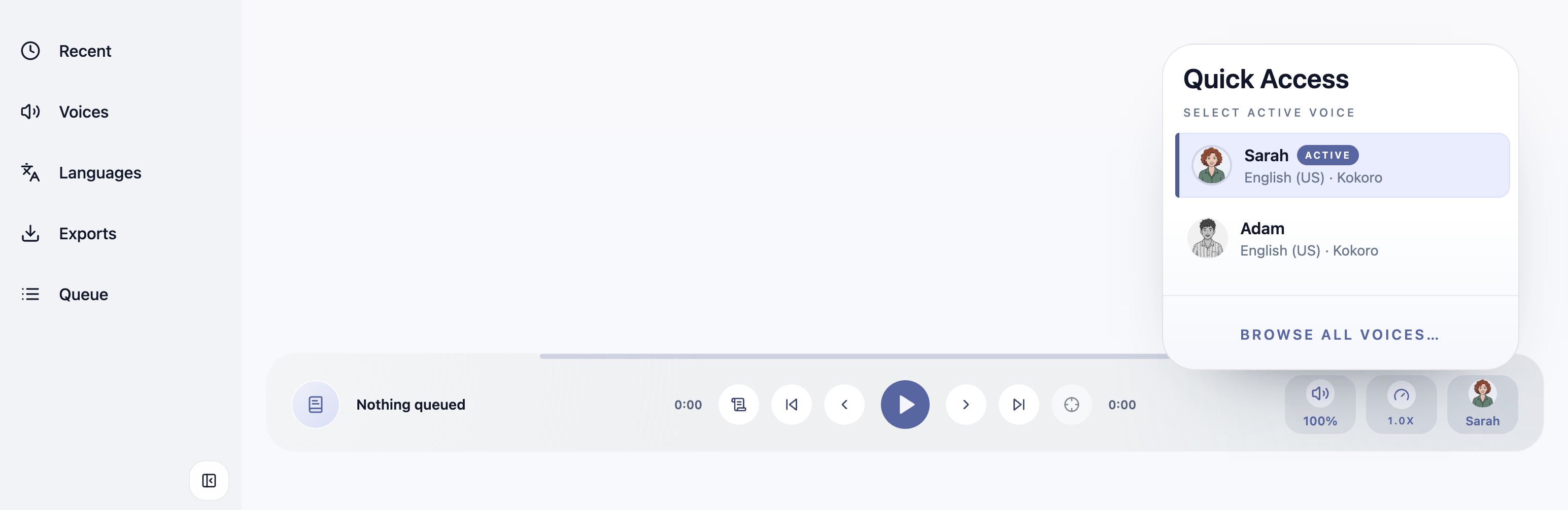
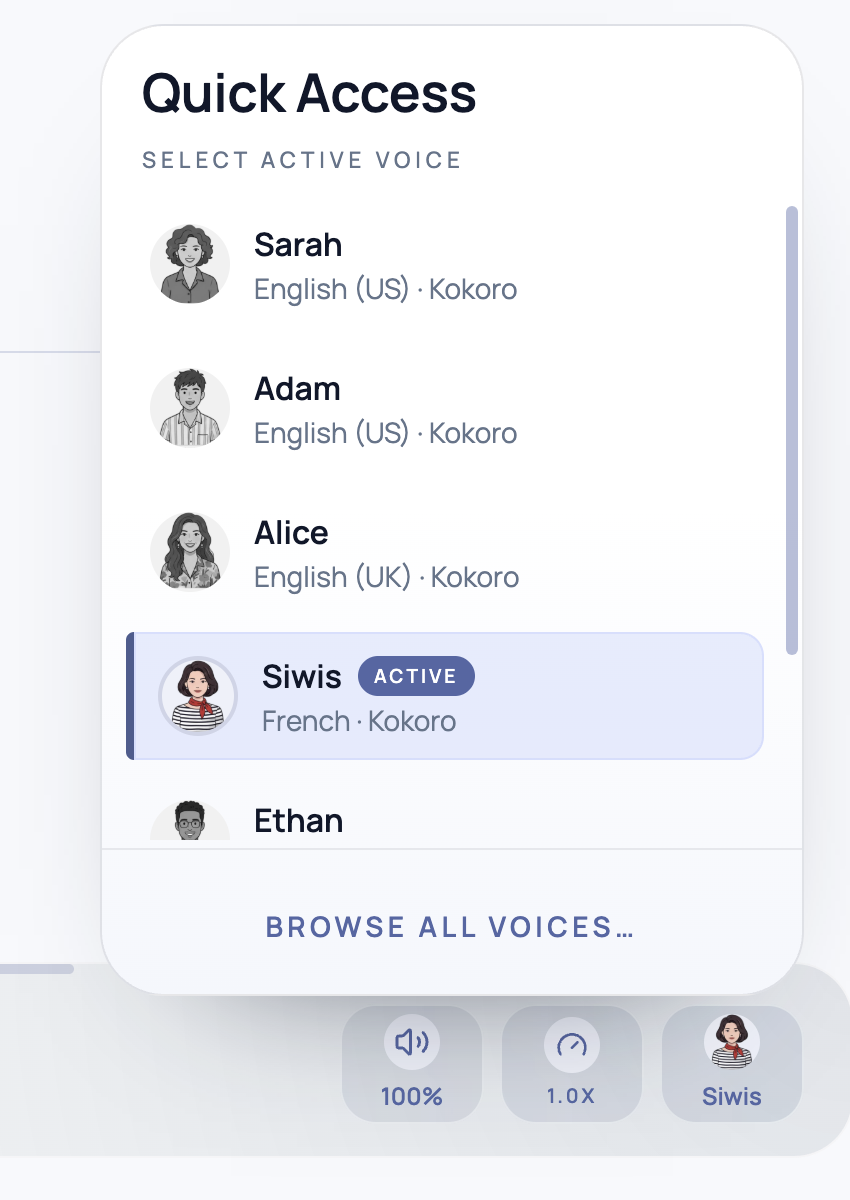
There are 38 voices (31 English, 1 French, 1 German, 2 Italian and 3 Spanish). To make the UI simple not all 39 voices are visible by default in the player. A few that you have selected are visible as Quick Access Voices.
By default only a few English voices are in the Quick Access Voices list. To update that list, click on “Manage Voices and Languages” in the voice selection panel of the media player. (You can also manage this list by going into Settings > Voices)
Managing Voices for Different Languages
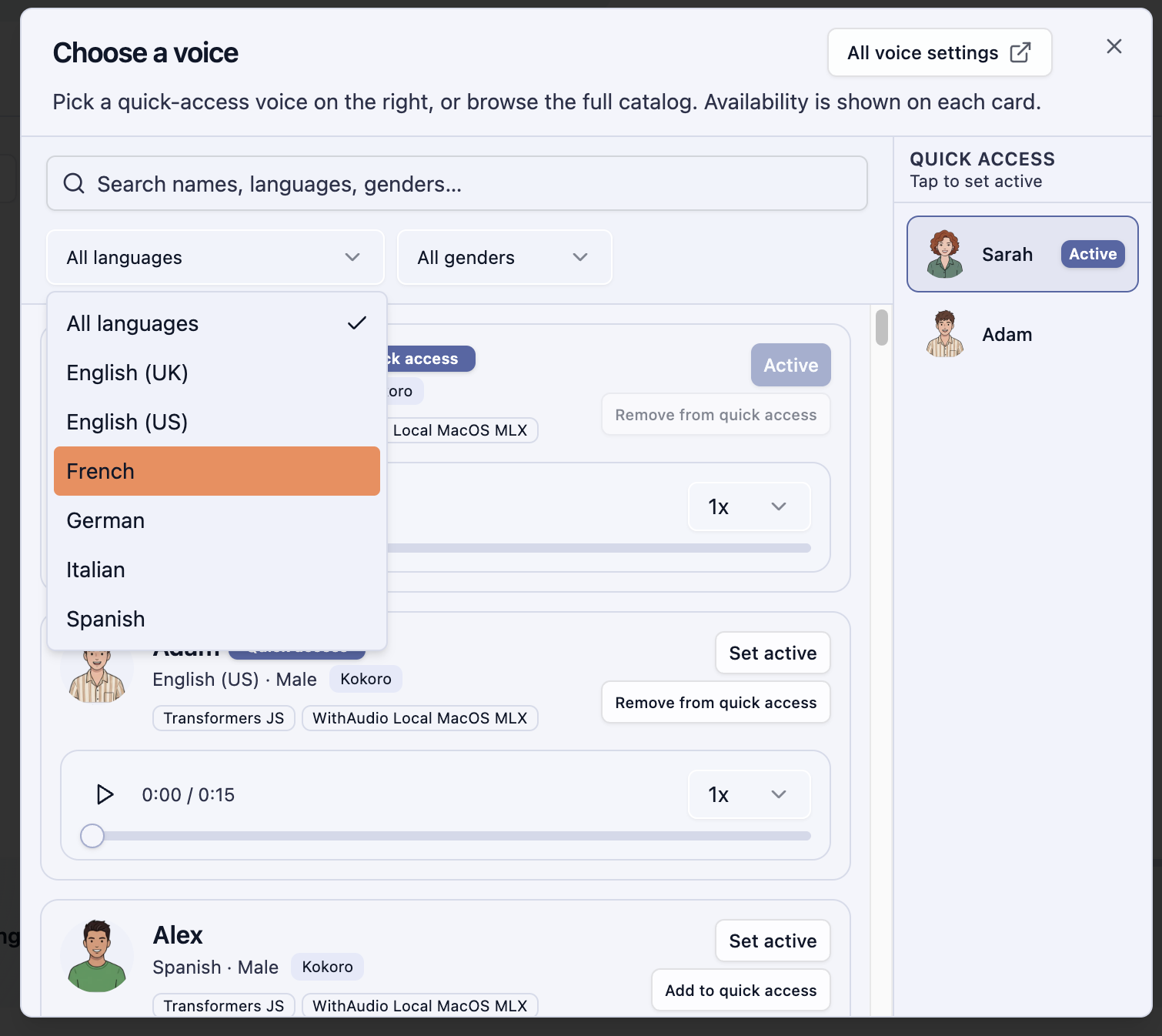
In the Settings Or Home > Voices tab. Choose the engine you want and has support for your language. Then use filters to find the voices for languages you are looking for.
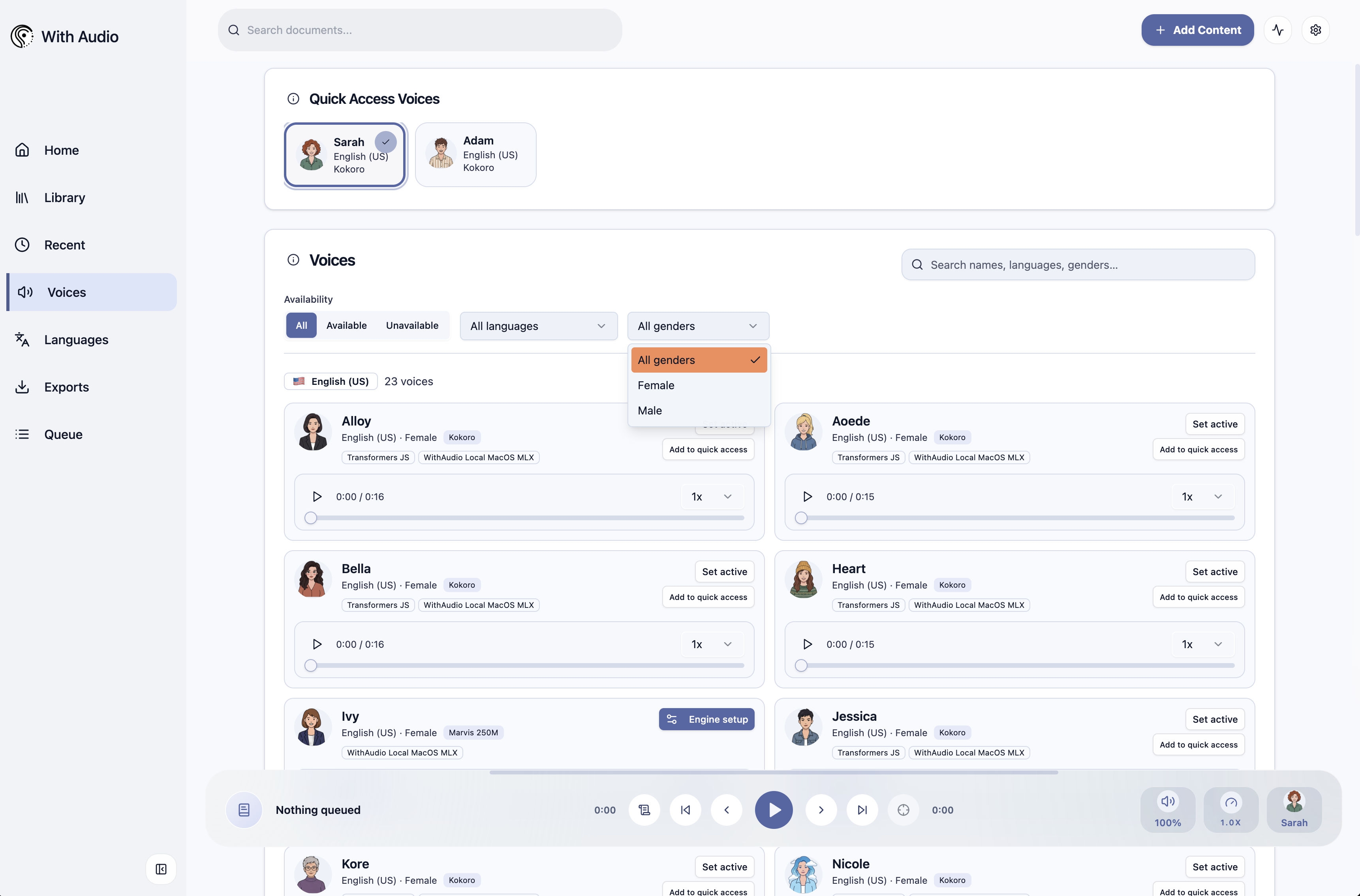
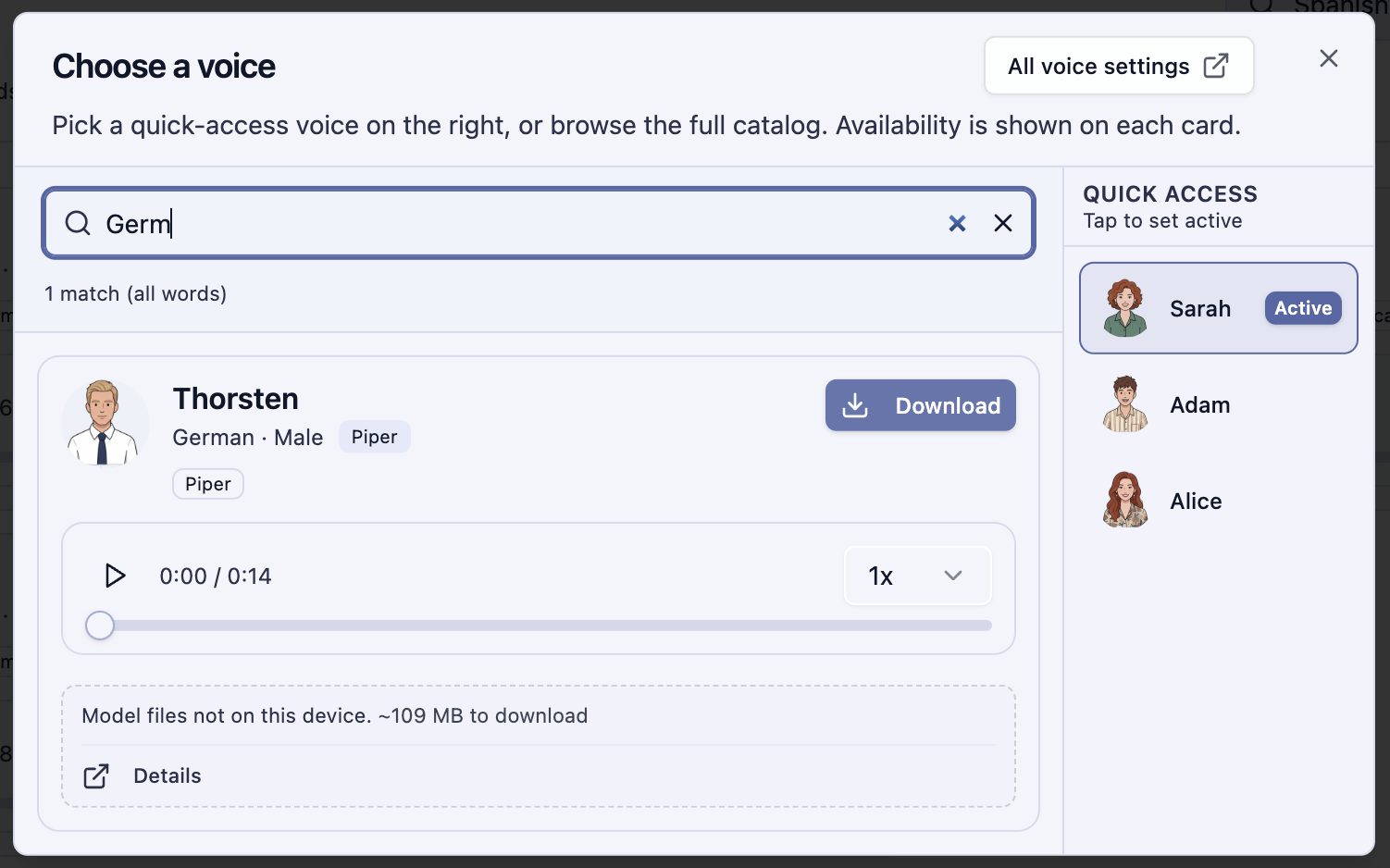
Or use the search bar which searches across everything.
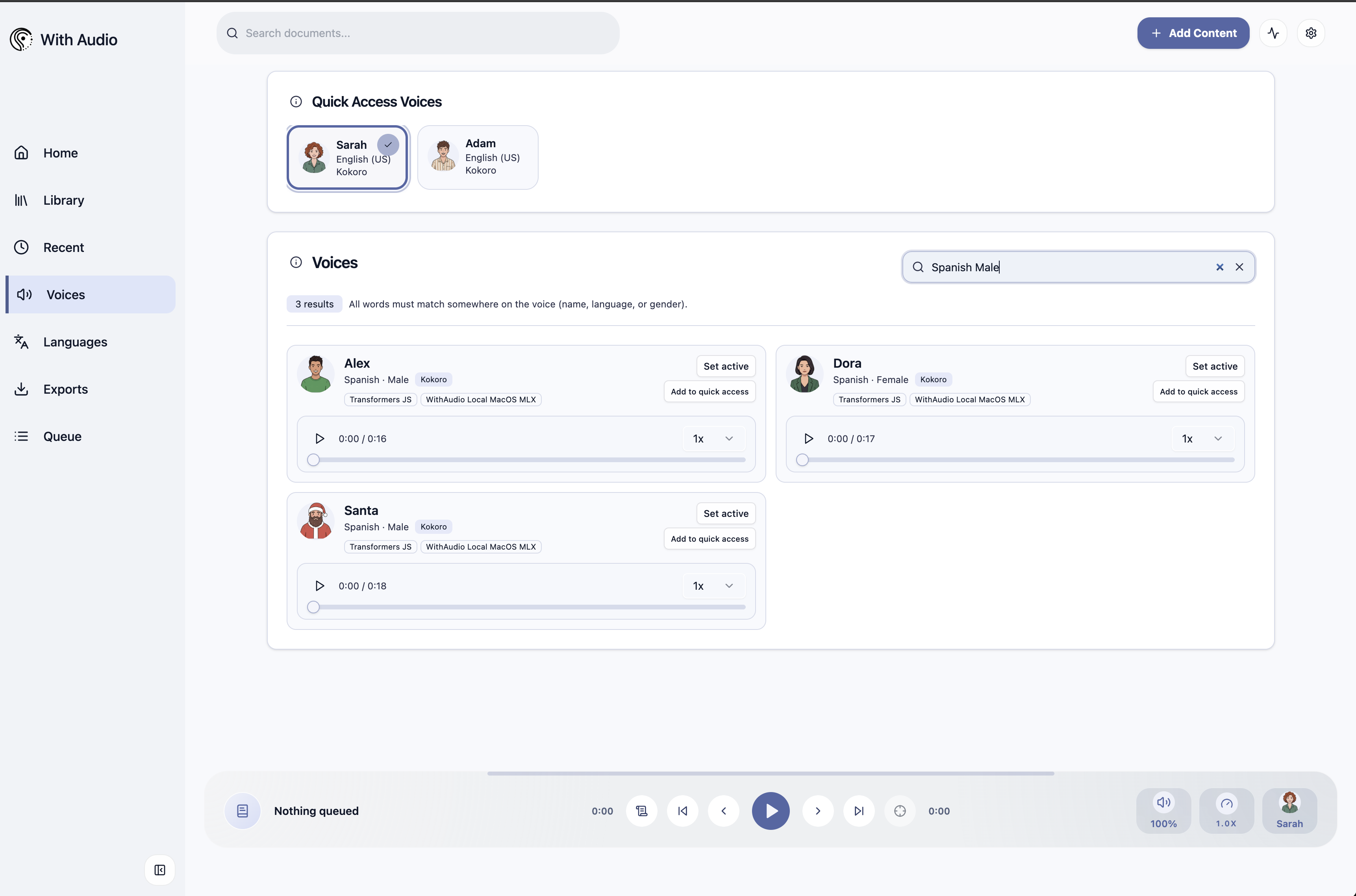
Which filters down to show only voices that match your criteria.
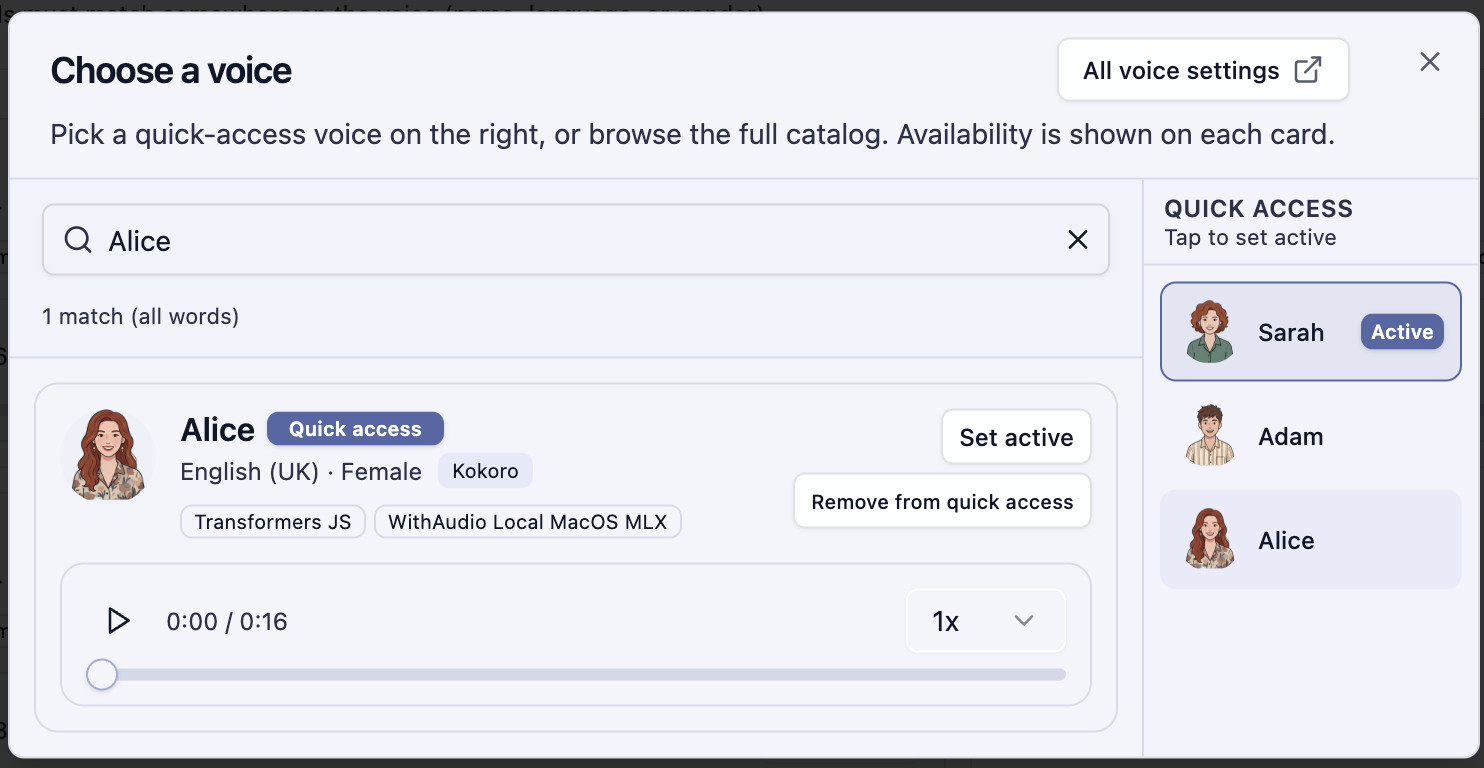
And make sure the “Add to Quick Access” is ticked. This ensures this specific voice is available for quick access.
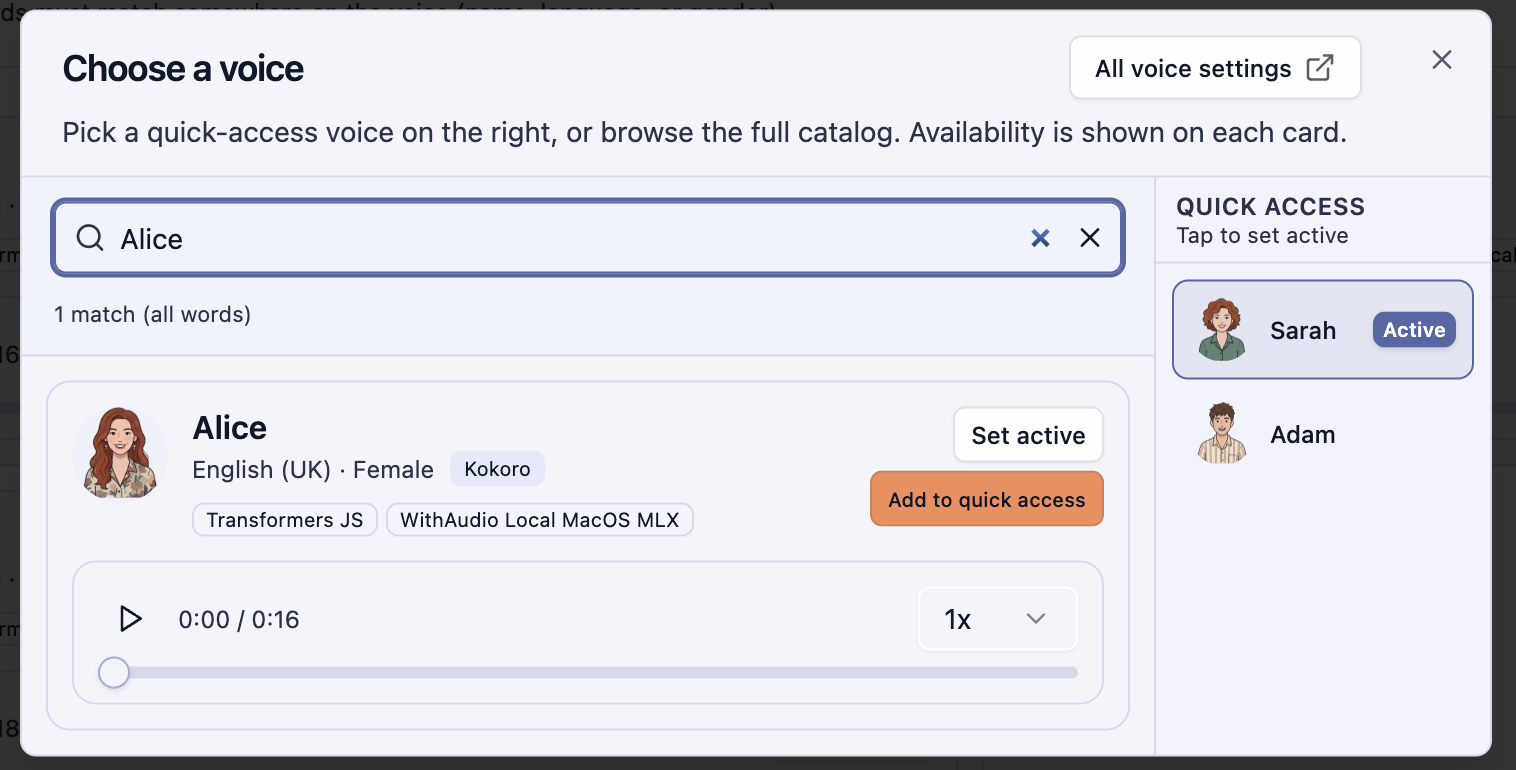
This will add it to the list.
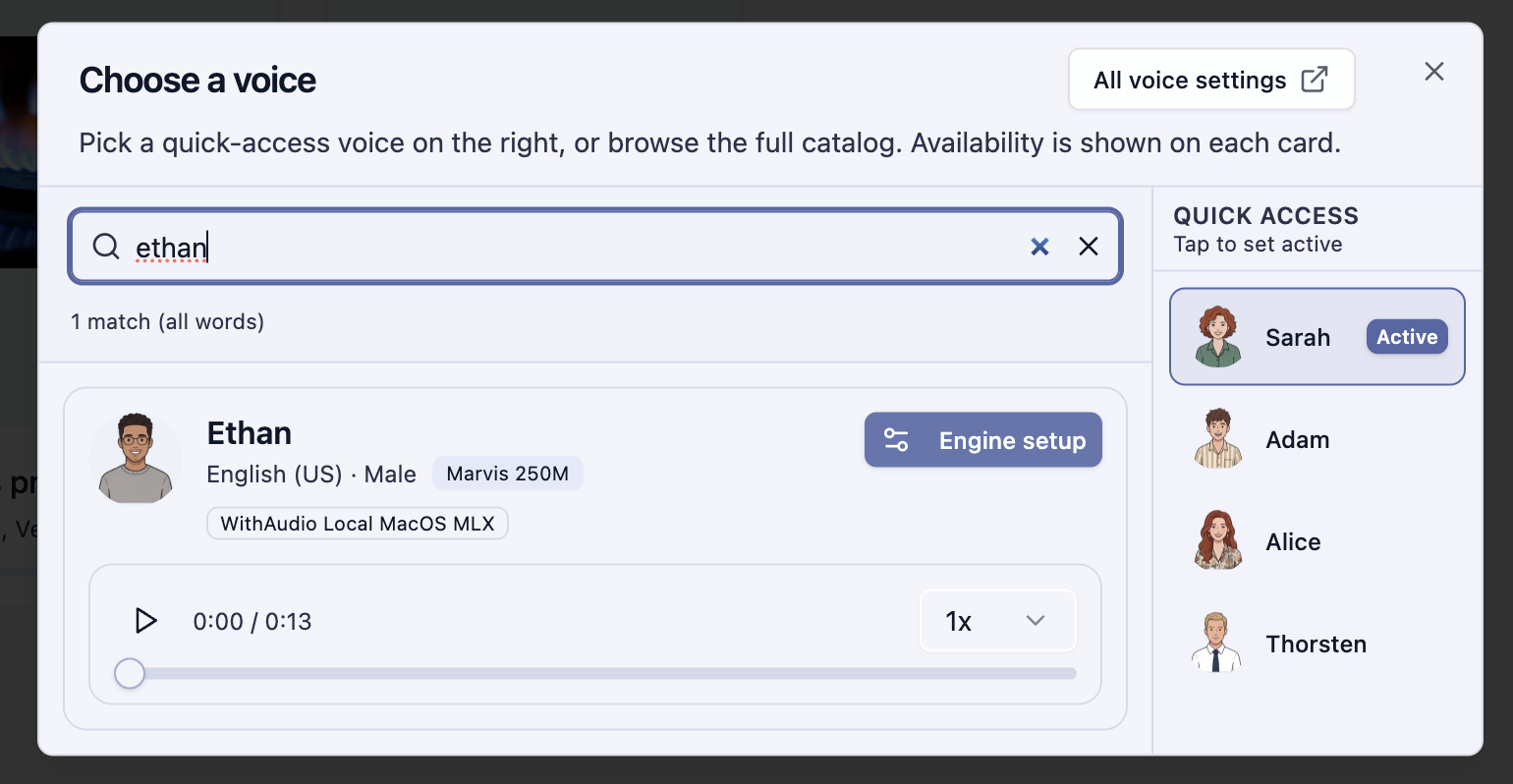
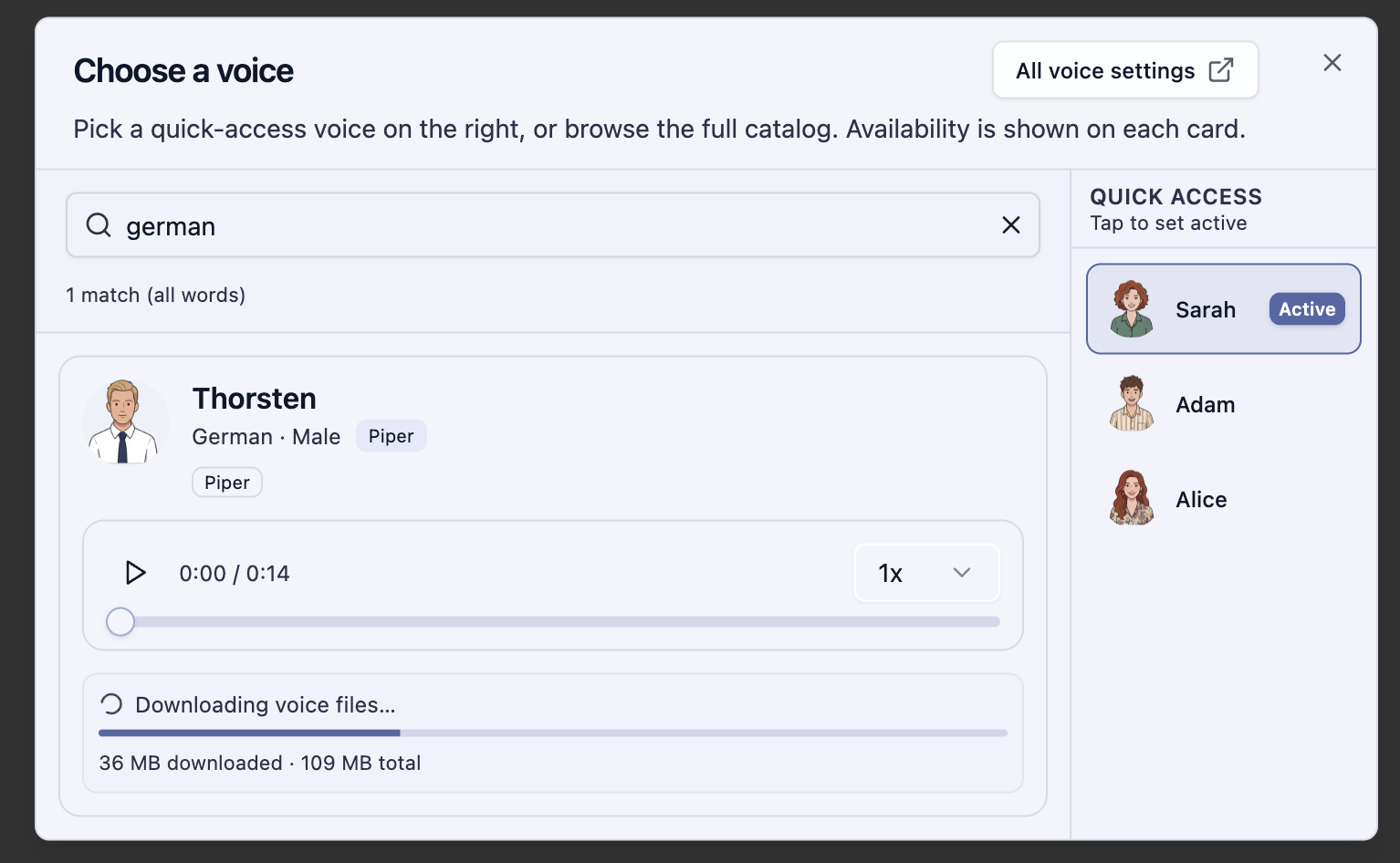
Some voices need Engine Setup which basically means downloading their engine separately. You can try the sample audio by clicking the play button to see if you like the voice or not before you download.
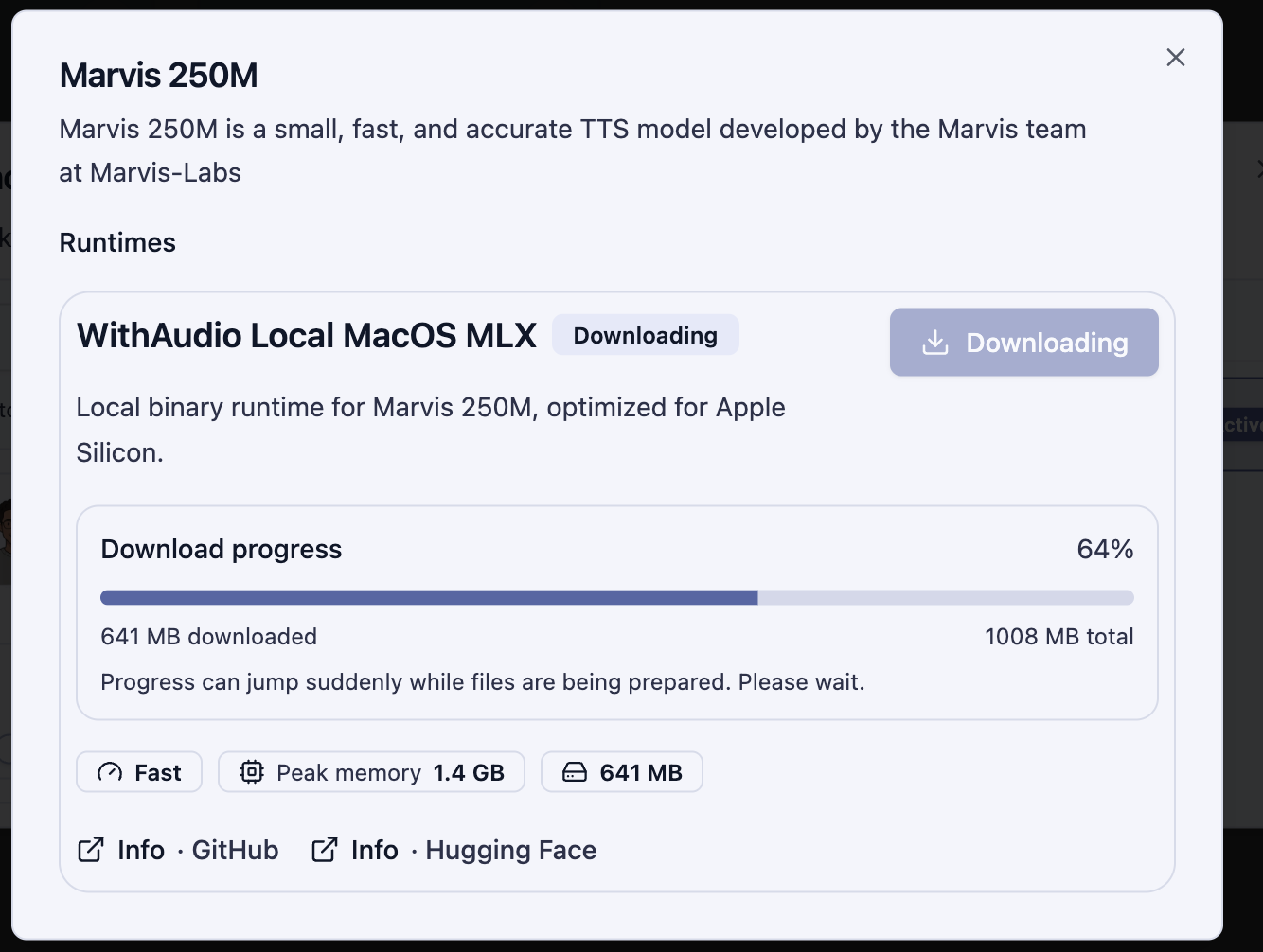
Some voices need extra data download
Using Language-Specific Voices
Now when you import your French (or other languages) content you see the “Siwis” voice (or the voice for the other language), select it and click the play button next to any paragraph.
Learn More
Hear samples and browse the full voice list on the WithAudio website — available voices. For which languages are supported and related product details, see desktop.with.audio/languages.